
6 · Into Houdini#
The Houdini side of the pipeline is the DazToHue HDA — its own documentation covers the network in depth; this page is just the hand-off.
What the studio gives you#
- The Houdini assets (otls, presets, toolbar) were merged into your Houdini documents folder during setup.
- Your character's PoseAsset CSV — delivered into each scene's export
folder under the same scene-suffixed base name as everything beside it
(
<Name>_<Scene>_pose_asset.csv; the primary scene's is plain<Name>_pose_asset.csv). Without direct export, take it from the studio's own copy:<Project>/.dcsmeta/characters/<Character>/<Name>_pose_asset.csv. That folder is hidden and belongs to the app — read from it, don't edit it; the next Save overwrites what's there. - The exporter's
<Name>.abc/<Name>.dthnext to it. - For any Bone scale frames, a reference-skeleton FBX each — the CSV already points at them, nothing to wire up.
Hook it up#
In your DazToHue network, point the PoseAsset import at the character's
_pose_asset.csv and the geometry import at the exported .abc/.dth.
Wire the network once — from then on the studio can run it for you: pick the project in DTH Export and it runs the DazToHue exports for the scenes in scope, headless in the background — with Skip Daz — use last exports for a Houdini-only pass.
Tip
The exports sit under the .hip that reads them, so the portable form
costs nothing: in the file picker, navigate to daz-export/ and tick
Make path relative to current directory — the import reads
$HIP/daz-export/primary/<Name>.dth, which is exactly what the studio
generates, and the .hip stays movable.
Still worth pointing Houdini's File → Set Project at the
character folder —
the one holding houdini/ — because $JOB is what reaches the character's
export/ folder, which sits beside the houdini folder rather than under it.
Generate project bakes that in
for you.
Generate the Houdini project automatically#
The character page's Houdini projects → Generate project creates the whole
project for you: a new scene named after the character (editable in the dialog,
which refuses a name that already exists), saved in the character's houdini
folder, with Set Project already baked in — $JOB on the character
folder, so both the scene and the exports sit under it — and the DazToHue
network ready. The network comes out
wired: the import file paths (.dth, FBX, Alembic, ROM FBX), the
PoseAsset CSV path, the export directory and the Skinning method
(Linear / Dual Quaternion, from the ROM definition) are prefilled — as
$HIP/daz-export/…, relative to the project's own folder, by default; absolute
when the project's
Houdini path style
says so — and the character name is set with them. A parameter
your installed DazToHue version doesn't have yet is simply skipped (the CSV
path needs the release with the CSV-driven PoseAsset node).
The new scene's timeline is set to 30 fps, the rate the ROM is built at — one pose per frame. DazToHue's import node sets this itself when it loads the files, and a generated project never loads one (the studio builds the network and fills its parameters directly), so the studio sets it up front. Houdini's own default is 24, which would put every imported ROM frame between two of the scene's own — and the PoseAsset CSV names frame numbers. If the generated scene comes back on some other rate, the studio says so instead of assuming.
Which scene? A character with several Daz scenes gets a Daz scene to import picker in the dialog — from the second project on. Each scene exports into its own folder, so the pick decides which export set the imports point at — generate one project per scene to cover them all. The first project isn't asked (nor is a single-scene character): it is the character's main project, wired to the primary scene.
Either way the dialog says which scene it is generating for — "wired to
KiraSummertide_G9_GP", marking the primary as such — and the line follows the
picker as you change it. The confirmation names the scene too, so the answer
survives the dialog closing: a character with one project per outfit makes
"which one did I just make?" a real question.
The generated project opens with its character already loaded, on the rest
pose. Setting the import paths from a script doesn't run the import node's own
"a character was chosen" routine — the one that offers to fill the sibling paths
and then actually reads the files, which is what sets the Alembic's frame range
and puts the scene on frame 0 — so the studio runs it itself and answers its
prompt the way you would, then puts its own $HIP/… paths back so the project
stays movable. It only runs when the files are really on disk: generate before
the Daz export has produced them and the project comes out wired but unloaded,
exactly as it used to.
The export directory is a different folder from the imports, on purpose:
they read the Daz→Houdini intermediates under daz-export, while Houdini
writes its own Unreal-bound output to the character's export/ folder
($JOB/export/, or whatever the project's Final export subfolder is
named). One export/ per character, shared by every scene's project.
Generate a second or third project and they all land in the same houdini folder,
so they share both $JOB and $HIP — and with $HIP shared, Houdini's own
output (renders, caches, backups) collects in that one folder rather than
scattering per scene.
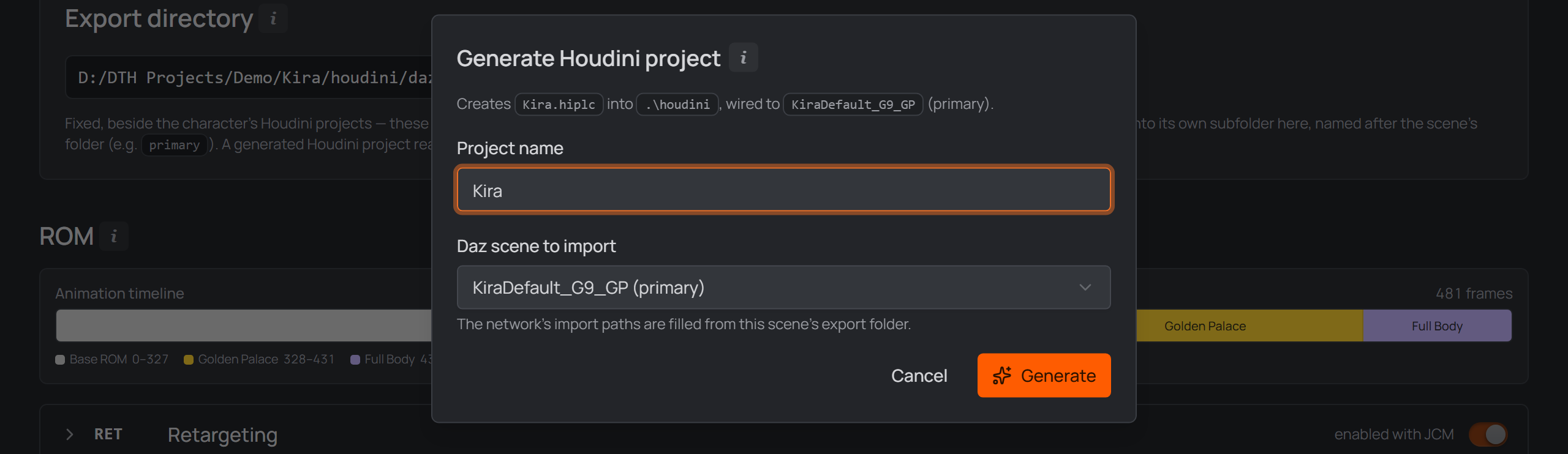
Generate project: one name, prefilled — the studio builds the scene, Set Project and the DazToHue network.
Ita/                            ← $JOB (Set Project), baked into every scene
├─ daz3d/                       ← your Daz scenes
└─ houdini/                     ← $HIP, and the shared project folder
   ├─ Ita.hiplc                    ← the generated scene (imports daz-export/…)
   ├─ daz-export/                  ← what the DTH Exporter wrote, per scene
   └─ render/ geo/ backup/         ← Houdini's own output, shared by every scene here
Removing a generated project asks about its files: with Keep houdini
files on it is only unlinked; turned off, its scene file is deleted too. The
houdini folder itself always stays — the character's other scenes live in it,
and so does its daz-export folder. Hand-linked projects are always
unlink-only.
One one-time Settings entry powers it: the Houdini installation folder
(Houdini's own install directory — its bin\hython.exe builds the scene
headlessly), paired with the matching Houdini documents folder
(Houdini 22.0.x ↔ …\Documents\houdini22.0) so the DazToHue assets load.
Normally you never type either: activating a Houdini card in
Settings → General fills
both together, which is exactly why the cards exist — and the Generate
Houdini Projects section in Settings disappears entirely then, since there is
nothing left in it to set. Fill the paths by hand on a machine with no card
and Settings warns live when the pair doesn't match. The DazToHue
network is created from your installed DazToHue HDA at generate time, so
it's always the current plugin version — no template scene that could rot
across Houdini or DazToHue updates. If the HDA isn't installed the project
still generates (empty scene, Set Project baked) and the studio tells you to
add the network from the DazToHue shelf.
Project checks — what the card warns about#
The studio checks a character's own Houdini projects in the background: opening
the character page scans them (at most two at a time) and caches the result, so
nothing waits on Houdini and a project you haven't touched since costs nothing to
re-check. Projects linked from outside the character folder are left alone —
those are yours, and the studio has no $JOB expectation for them.
While a project is actually being read, the card's orange left bar lights up — a brighter glint sweeps down the stripe — because reading one means opening the whole scene in Houdini, which takes a while. Only the projects being re-read show it: a project that hasn't changed is answered from the cache without starting Houdini at all, so a still bar means "nothing to do", not "not checked yet". The card stays usable throughout.
A project that needs attention gets a Needs attention marker on its card, with the reason in the tooltip:
| What it says | What it means |
|---|---|
$JOB points at … |
the project's Set Project is another character's folder — every path it stores collapses against the wrong root |
| the timeline runs at … | the scene is not on the ROM's 30 fps (Houdini's own default is 24), so imported ROM frames don't land on the scene's frames |
| import paths do not resolve | a .dth/FBX/Alembic reference points at a file that isn't there |
paths still anchored on $HIP |
references written as $HIP/../… by a project made before v0.69 — they resolve today, but $HIP names the scene's own folder, so moving that .hip one level deeper breaks every one of them |
| Not filled in yet | a DazToHue parameter the studio knows the value for is still blank |
| baker textures are missing | a material baker's layer texture names a file that is no longer on disk — usually a Daz product that was uninstalled |
All but the last are repaired from the
Utils drawer's General tab
(Repair project settings, Make paths portable, Fill network) — which
is exactly what makes copying a project workable: a copy arrives carrying the
source's $JOB and file references, the card tells you so, and three buttons fix
it. That drawer also copies a material or skeleton setup from one project
into another; it has its own page.
The missing texture has no repair button, deliberately — putting the file back is a reinstall, outside the app. It earns the badge anyway: it is the one failure here that the rest of the pipeline reports as success, so without it the first sign is a wrong-looking character in Unreal.
Note
The checks cover $JOB, the timeline, the DazToHue import paths, blank
parameters and the material bakers' layer textures. Nothing else in the
scene is verified — a clean card is not a promise that every path in it
resolves. The texture check is deliberately scoped to those baker parameters,
because "the file is missing" is no use as a general rule here: a healthy
project names several of Houdini's own scratch files that simply don't exist
until something writes them. A project the studio has never managed to read a
value from is reported as could not be read, never as wrong: an unknown is
not a fault, and nothing repairs one.
$DAZ3D_LIB — your Daz library, as a variable#
With both My DAZ 3D Library and the Houdini documents folder set in
Settings, the studio maintains a DAZ3D_LIB variable in each configured
Houdini version's houdini.env, pointing at your Daz library. Reference any
library file as $DAZ3D_LIB/… (textures, geometry, presets) instead of
hardcoding machine paths — together with the $HIP-anchored imports, the whole
project stays moveable. It updates automatically when the library path changes in
Settings, and Tools → Refresh assets (re)wires it too — restart Houdini to
pick up changes.
Note
In the export folder, every scene's delivered CSV is scene-suffixed — always point the PoseAsset import at the CSV sitting in the scene subfolder you exported. (In the character's folder, a scene whose per-scene ROM overrides change the frame layout additionally has its own source CSV — see What Save generates.)
Note
That's the whole trick: the CSV comes from the same definition as the Daz script you just ran, so every frame Houdini expects is exactly where Daz put it. Change the character later, Save, re-run, re-export — both sides move together.
Send to Unreal#
Sending happens in one place: the DTH Export panel's Unreal projects section, so a full Daz → Houdini → Unreal run is one Start. To send an export you already have without running anything, pick Skip Daz — use last exports and Skip Houdini — use last exports: then the whole run is the send.
The Unreal leg reports where the other two do: the run's task list in the
character header, and its status line — Unreal; queued for workflow3d, then
the wait, then the outcome, which arrives minutes later from an editor that may
not even have been open when the job was queued, so the run's display stays up
until it does.
It gets one row per import job, not per project: sending two export sets to one Unreal project is two imports, so the list shows two rows, each naming the set (the character as Unreal will know it) and the project it lands in. Every row is a re-import — a set the project has never held is dropped from the job and named in the report instead, because its first import is made in Unreal itself.
What it sends is what the run makes: the export sets the Houdini projects in
the run write, or — under Skip Houdini — use last exports — the ones already in
the character's export/ folder. Each is a folder there named by the HDA's
character name and holding a DTH_<name>.dth, so one character can have
several (outfit variants, for instance). Nothing is picked: ticking the Unreal
project is the whole decision, and the run's task list names each set it
re-imports. They travel in one job and import into one content folder each. This is the end of the
pipeline, not the daz-export intermediate the Houdini imports read. What imports it is mrpdean's DazToHue importer plugin, whose
own pipeline does the work: meshes, textures, materials, animation curves and
the post-process animation blueprint.
A second send re-imports what you already have. Before sending, the studio
looks through the project's Content/ for assets belonging to each export set —
they are all named <PREFIX>_<set>, so it finds them wherever you moved
them — and tells the Runner to import there, on top of what is already
present, instead of creating a second set under /Game/DazToHue/<Character>.
Move your character to Content/Characters/Lara and that is where the next send
lands. The finish toast says which happened and where: Re-imported in Unreal —
6 assets in /Game/Characters/Lara.
Renamed assets are the one thing it cannot follow: those read as "not here", and since the send only ever re-imports, that set is skipped and named in the report — rename the assets back, or reimport them from inside Unreal.
What a re-import does, exactly. It runs Unreal's own Reimport on the
assets already there — the same action as right-click → Reimport in the
Content Browser — so the meshes (and the morph targets inside them) come back
from the FBX the export just wrote. It does not re-run the DazToHue import
pipeline, so materials, curves and the anim blueprint stay as that character's
first import built them. That is deliberate: DazToHue 2.5's pipeline cannot run
twice over one character (it duplicates its master materials into names that
already exist), so a second .dth import fails outright where a reimport
updates the mesh.
The studio does not start Unreal. An editor takes minutes to come up and
holds its project open, so the job is queued instead: the DTH Character
Studio Runner for Unreal (Plugins\DTHCharacterStudioRunner, pure Python —
the Unreal counterpart of the Runner plugin
that drives Daz) watches for the job and runs the import within about a second. An editor you open later claims the job
on startup — the same way a closed Daz picks up a batch that was queued while it
wasn't running.
Install the Runner first. It is an ordinary item in the project card's
install dialog, pre-checked
alongside DTH content — nothing appears in your Plugins\ folder that you
didn't tick. Sending to a project that hasn't got it says so rather than waiting
for a watcher that will never come.
A closed project is opened for you. The studio still never launches Unreal
to run an import — an editor takes minutes to come up and holds its project —
but a job nothing can claim is a run that visibly does nothing. So five seconds
after queueing, if the job is still sitting there and no editor is running at
all, the studio opens the .uproject and the Runner claims the job on
startup. An editor that is already up is never doubled: if it does not pick the
job up, its Runner was installed after that session began — restart it once.
While the Runner works, Unreal shows its own progress dialog — the import holds the editor's main thread for minutes, and a frozen editor looks exactly like a hung one.
Note
Restart the editor once after installing it. Unreal loads plugins at startup, so a Runner installed into an open project does nothing until that editor restarts. The panel says "Waiting for the editor to pick it up…" until something claims the job — normal while Unreal starts, and the sign of a missed restart when the project is already open.
Every Install rewrites the Runner, so a re-install is also how you refresh it — and the project card shows an amber ⚠ when its copy is older than the one this app ships. A send to that project is then refused rather than attempted, and says both versions: the studio reads the installed Runner before it queues anything, so an out-of-date one is a message here instead of a job that fails inside Unreal. Re-install from the card, restart the editor once, and send again. It lives in its own plugin, so the DazToHue plugin is never edited.
For the Unreal side itself, continue with the DazToHue documentation.
That's it — first character, first ROM, both sides in sync. From the second character on, the loop is just: Add character → Fill from character → adjust morphs → Save → run the script.