
5 · Build the ROM in Daz Studio#
Run the script#
- Open the character's scene in Daz Studio — each scene card on the character page has an open menu (Open scene, or the saved ROM animation once one exists).
- In Daz's Content Library pane, browse your library: Scripts → DTH-Character-Studio → <Project> → <Character>.
- Double-click
ROM_<Name>_G9.
The character's ROM script in Daz's Content Library.
The script builds the entire ROM on the timeline — every section you enabled, every morph on its exact frame. This takes a moment on a big ROM; the script reports what it did when it finishes. Before it builds, it also quietly scans the open scene into the studio's morph index (and, with a DIM manifests folder set, refreshes that scene's product scan) — the Parameter-name autocomplete stays current through normal use, and a scan problem never fails the run.
Note
If anything couldn't be applied — a missing morph, a failed preset — the script says so in a dialog at the end, and the studio lists the exact failures when you switch back to it. The ROM's frame count is never affected: a missing morph leaves its frames empty instead of shifting everything after it.
Note
The scripts check the open scene first: running a character's ROM, export or scan script while some other scene is open (or an unsaved one) does nothing — an error dialog names the open scene and the character's linked scenes instead. No more silently building Kira's ROM into the wrong scene.
Direct export (optional, recommended)#
Instead of exporting by hand, let the script drive the DTH Exporter Plugin (v1.8.1+, installed in step 2):

The export directory section on the character page.
- Nothing to set up: every character has an Export directory, fixed at
daz-exportinside its Houdini folder (created with the character). It sits beside the.hipprojects that read it and is shown read-only on the character page. To skip exporting, turn off Run the export with the ROM script (below) rather than looking for a way to clear the path. - Run the script in Daz as above — after building the ROM it now runs the
exporter automatically and writes everything the pipeline needs into your
export folder:
<Name>.abc,<Name>.dth(extra scenes:<Name>_<Scene>.*), and the PoseAsset CSV (plus a reference-skeleton FBX for each Bone scale frame, under aReference Skeletonssubfolder — the CSV already points at each one). The script deletes the scene's previous export set first — an export always replaces the whole set, so files from an earlier layout (or a renamed hair item) never linger beside a fresh one, and Daz Studio 4's exporter, which skips the ROM walk when its output files already exist, always gets the empty folder it needs. Anything else you keep in the folder is left alone.
After a clean ROM build — right before any export — the script also saves
the ROM'd scene as <scene>_ROM.duf into a rom-animations/ subfolder next
to the scene file. Open it any time later to get the fully built ROM animation
back without the (slow) rebuild; each run overwrites the previous copy.
Every scene exports into its own subfolder of the export directory, named
after the subfolder the scene lives in inside the character folder (the primary
scene's is primary), so outfit variants of one character export side by side.
The exporter output and the PoseAsset CSV land there, and the files carry
the scene in their name too — Kira_Summertide.abc, not another Kira.abc —
so they stay distinguishable once they leave the subfolder (Houdini file
pickers, recent lists). The primary scene is the exception: its files keep
the plain name (Kira.abc, never Kira_Primary.abc) — the primary is the
character.
Where the Houdini project fits#
The exports deliberately live outside the Houdini project — a Houdini
project folder is something you back up, sync or put in version control, and
.abc/.dth files are large and fully regenerable. So the studio keeps them
on the Daz side, one .. away from your .hip:
<character>/                ← $JOB (Set Project) — it holds BOTH sides
  daz3d/
    Kira.duf              ← your scenes, and nothing generated
  houdini/                ← $HIP — every scene of this character lives here
    Kira.hiplc            ← imports read daz-export/…
    Kira_Look.hiplc
    daz-export/           ← what the DTH Exporter wrote, for these imports
      primary/  Kira.abc  Kira.dth  Kira_pose_asset.csv
      summertide/
    render/ geo/ backup/  ← Houdini's own output, shared by both scenes
  export/                 ← the FINAL files, for Unreal
$JOB is the character folder — Houdini only collapses a path you pick into
a variable when it sits under $HIP or $JOB, so $JOB has to be the folder
above houdini/, or picking an export writes an absolute path and the project
stops being movable. houdini/ is the shared project folder: every scene of
a character lives in it and shares one $HIP, so Houdini's own output (renders,
caches, backups) collects there instead of scattering per scene. export/
is the end of the pipeline — what Houdini generates for Unreal, yours to
organise, and not to be confused with the daz-export intermediate the DTH
Exporter writes inside the Houdini folder. All three are created with every new
character and can be renamed per project in Settings → Project.
There is no plumbing between the two sides: from a .hip in the houdini folder
the exports are a subfolder away, and ticking Houdini's Make path relative to
current directory in the file picker gives you the portable $HIP/daz-export/…
form — the same spelling the studio generates, so a path you pick by hand and
one it wrote read identically inside the same node. Generate project bakes
$JOB in for you, so a generated scene needs no Set Project at all; $HIP
never needs setting up either way, since Houdini derives it from wherever the
.hip sits.
Note
Upgrading from an older version? Every layout change below carries itself out on the next save, and Tools → Refresh assets does every character in one go.
- The export directory has moved twice. A character's exports follow to the current location and the emptied old folder goes; only folders the studio wrote are moved, anything else you kept there stays put. A Houdini project generated before a move still names the old one, so its imports report as broken on the character page — Utils → Make paths portable rebuilds them from the current export root, and only ever writes a path whose file it can actually see.
- The
houdini-projectsubfolder is gone. Before v0.68 it was meant to be the Set Project target, a job it could never do (Set Project sets$JOB, not$HIP), so it stayed empty while the output landed beside the scenes. It is removed only when empty; one holding files is left alone and named in Refresh assets, for you to clear yourself. dth-exportsshortcut links (NTFS junctions) beside Houdini projects are removed, reported as removed N leftover dth-exports junction(s). Real export folders are never touched.- The saved-ROM folder was hidden and called
.ROM_Animations; it holds scenes you're meant to open, so it is the plain visiblerom-animationsnow and an existing one is renamed for you.
Reference-skeleton paths — $HIP by default#
Every Bone scale frame gets a reference-skeleton FBX, and the PoseAsset CSV
has to point Houdini at it. Those paths are written relative to $HIP — the
folder the .hip itself sits in — which now reaches the exports without leaving
the project folder:
$HIP/daz-export/primary/Kira_frame_432.fbx
so the project keeps resolving after you move, rename or copy the character
tree — including onto another machine. $HIP has a property no other anchor
has: Houdini derives it from where the file is, so it can't go stale — a
project whose $JOB points at another character still resolves its own imports.
Settings → Project → Houdini path style controls this: hip (the default)
writes the relative paths, absolute forces absolute ones.
Two layouts fall back to $JOB, the character folder, which encodes no
depth and so is right for every project at once: linked projects sitting in
different folders (there is no single $HIP to name), and exports sitting
beside the houdini folder rather than under it — the arrangement before
v0.68. Both still resolve, so neither is flagged; Utils → Make paths
portable shortens the older form to today's when you ask.
What still falls back to absolute paths: no linked project yet, a .hip
hand-linked somewhere in your own tree (where $JOB is whatever you set it to),
or an export root outside the character folder. Generate a project — or link one
in the character's houdini folder — and save again to switch it over.
Old folders clean themselves up: the studio remembers which export folders the current layout uses, and when a scene's subfolder is renamed or moved, the previous run's folders are removed from the export directory on the next save.
Two switches (in the Daz scripts generated box on the character page) tune this:
- Run the export with the ROM script — on (the default), the one
ROM_<Name>_G9.dsabuilds the ROM and runs the export. Off, the export splits into its ownExport_<Name>_G9.dsabeside the ROM script — run it after the ROM script in the same Daz session; handy for re-exporting (another scene, or after a failed export) without rebuilding the ROM. - Export hair assets too — right after the main export, each of the open
scene's hair items
is exported on its own (
<Name>_Hair_<item>_grooms.abc— the same per-item pass as the standaloneExport_Hair_…script), into the same export folder. Works in both modes: with the combined ROM script and with the splitExport_…script. Scenes without a hair list skip the pass.
Batch export — DTH Export#
Running the script yourself (above) is one way — the DTH Export button in the character header does the whole thing for you, Houdini included:
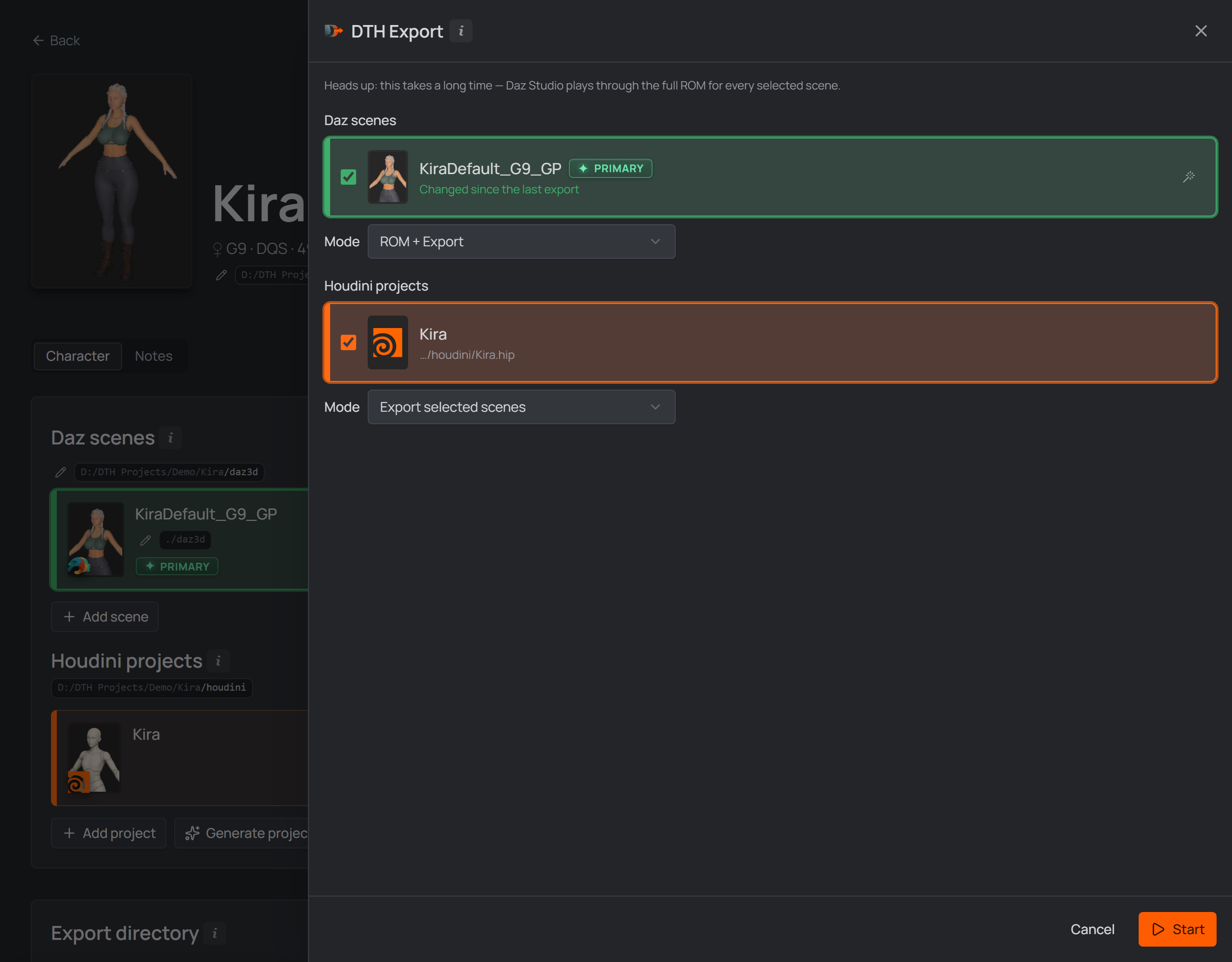
Pick the Daz scenes and their run, then the Houdini projects that carry on with the results.
Daz scenes lists every linked scene; the ones with outstanding work come pre-checked (the wand picks a single scene, a double-click selects all). The Mode below the list decides what their run does:
- ROM + Export — the full run: a fresh ROM, the saved ROM animation scene, and the export of everything (skeletal mesh and hair).
- ROM only — build the ROM and save the
rom-animationsscene (above), skipping the export entirely. - Export only — export the saved ROM animations as they stand, hair included, without rebuilding them. This is the one for a ROM you tweaked by hand in Daz: it pre-selects exactly the scenes whose ROM animation is newer than their last export, and skips scenes that have no ROM animation yet.
- Skip Daz — use last exports — nothing runs in Daz at all: the Houdini projects below work off each selected scene's last Daz export as it stands on disk. For when the Daz side hasn't changed and only Houdini needs a fresh pass. Scenes that never delivered an export are kept out of the run (there is nothing to rely on).
Houdini projects lists the character's linked projects the same way — the ones that carry on with the results once the Daz side is done. They come pre-selected whenever scenes are, so a plain Start does the whole round trip; untick them and the run ends with Daz. Their own Mode:
- Export selected scenes — the default: run the projects' DazToHue exports for the checked Daz scenes.
- Skip Houdini — use last exports — run no Houdini at all and hand the
exports already on disk to the Unreal projects below. Offered only when the
studio project has a linked
.uproject, since without one it would mean "do nothing".
The project list follows the scene selection. Untick a Daz scene and the
projects that only import that scene leave the run with it; tick it back on
and they return. The match is the one Houdini itself makes at export time — a
project belongs in the run when one of its networks imports a selected scene's
.dth file — so what the panel shows and what the run exports can't disagree.
Names are deliberately not consulted: networks and projects get renamed and
copied around, the import path doesn't. A project only ever leaves the run
when its imports actually name a scene you unticked; one the background scan
hasn't reached yet, or whose imports match none of this character's scenes
either way, keeps whatever you have — the studio can't know there, and quietly
dropping a project would skip the Houdini half of a run you asked for.
Several selected projects run one after another: each loads and exports, then the next starts — the outcome waits for the single report at the end.
ROM only is the exception: it builds no fresh export, so there is nothing for a Houdini export to pick up — the projects don't pre-select there, and the export mode is disabled.
To just open a Houdini project, use the open button on its card — the panel runs the pipeline, and a mode that ran nothing sat oddly in it. And "export every scene" is what checking every scene in the list above means, so that mode is gone too.
Unreal projects is the third leg, and appears once the studio project has
linked .uproject files. Tick
one and the finished export is queued for import when the whole run ends, in
one job. Nothing waits on Unreal: the job is a file, and the project's
DTH Character Studio Runner picks it up whenever
that editor is next open.
The project is the only thing you tick. Which export sets go is worked out,
not asked: the ones the checked Houdini projects write (their export nodes name
them, read when the project is scanned), or — under Skip Houdini — the exports
already on disk. Whether each one is a refresh of what that project has or a new
character in it is worked out too, from the project's own Content/, and the
run's task list names every set with the project it lands in once you press
Start.
Like the other two lists, it pre-selects what the run is for: a project that
already holds one of the sets this run makes starts ticked (it is a refresh).
The send is re-import only — it lands an updated export on assets that are
already in the project. A project that holds nothing this run makes has nothing
to re-import, so its row goes inert and says so: a character's first import
into an Unreal project is made in Unreal itself (open the project and import the
DazToHue .dth once — that is where you decide where in the project the
character lives). From then on, runs re-import it in place, wherever you put it.
A Houdini project the background scan hasn't reached yet says nothing about what it writes, so nothing is pre-ticked and the section says so: send it anyway and everything in the export folder that the project already holds is re-imported. Rescan those projects (Utils drawer) and the run sends only what it makes.
The section needs somewhere to send from: tick a Houdini project to export first, or pick Skip Houdini — use last exports to send the exports already on disk.
Press Start: the batch is handed to Daz Studio, where the bundled Runner plugin works through it unattended — every scene gets its full ROM build, export and delivered CSV, exactly as if you had run the scripts by hand. A closed Daz is started minimized, since nobody needs to watch it work; a running Daz picks the batch up by itself and is left exactly as you had it.
The panel refuses to start while the Runner plugin is missing or older than the one bundled with the app — the notice links straight to Settings to update it first. (A skip-Daz run doesn't need the Runner at all.)
Watching the run#
The character header becomes the run's own display for as long as it lasts:
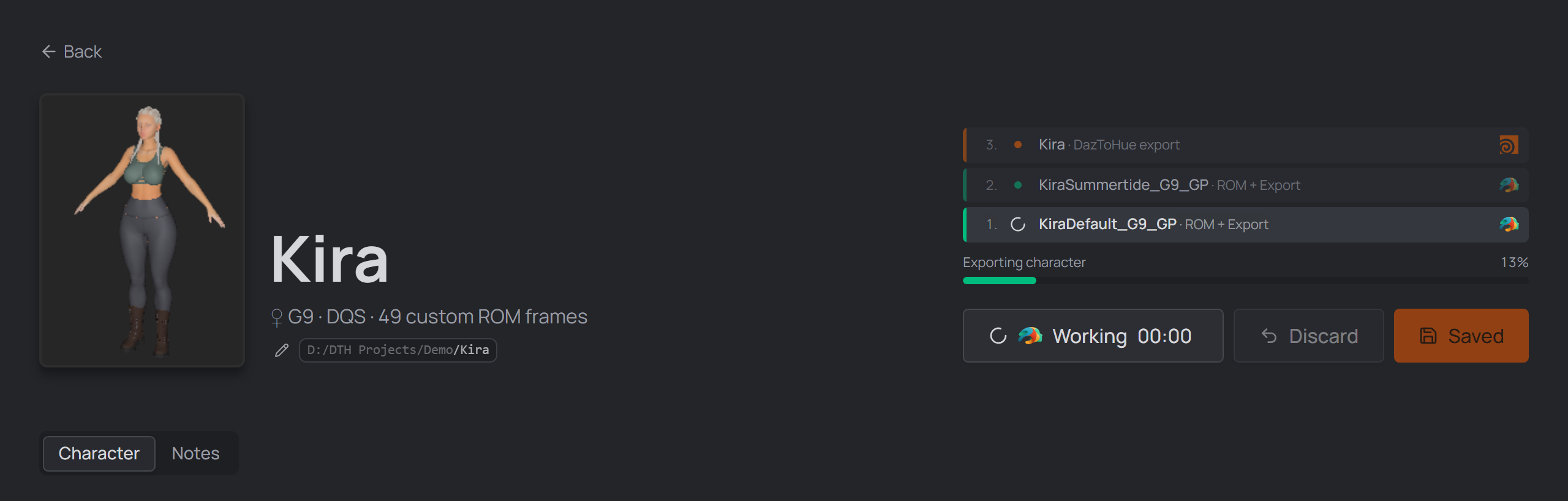
The live pipeline: one list of what the run does, and how far through it is.
One task list, numbered in run order and stacked bottom-up like a log — the first job sits at the bottom, later ones pile above it, and the row being worked stays at the bottom edge right above the bar while finished rows slide below the fold. One row per job, which is what makes it worth reading:
- every selected Daz scene, saying what the run does to it (ROM + Export, Export only, …);
- every DazToHue network, not merely every
.hip— a project holding two networks is two rows, each named as the network is, with its project beside it; - every export set going into an Unreal project — two characters re-imported into the same project are two imports, so they are two rows, each saying Re-import and which project it lands in. A set the project has never held is not sent (and gets no row): the report names it instead, since its first import is made in Unreal itself.
The row being worked spins; a finished one is ticked off and stays, so the list reads as the whole run rather than only what is left. The mark on the right is the application doing it.
One progress bar underneath, across the whole run, with the newest thing the run said printed on it as a single line. The Daz scripts report each step as they start it and as it lands (generating ROM → ROM generated); the Houdini leg passes on the DazToHue HDA's own output; the Unreal leg says when the job was queued and how the import ended.
Only the newest line is shown. The full output of each leg stays on disk, which
is where a post-mortem is read from anyway: the Runner's progress log, the
Houdini console log (.dth_houdini_console.log in the character folder) and the
Unreal editor's own log.
The button beside it simply reads Working with the elapsed time; the numbers live in the display. Nothing is announced mid-run: one report at the very end covers both legs, with any per-scene failures and the total time, and stays on screen until you close it (or start a new run).
The working button is also the interrupt. Hover it while a run is live and its spinner becomes a stop mark — Click to interrupt — through both legs. It is the one control that reaches into the work rather than into the studio's view of it:
- The ROM build stops where it happens to be — between two ROM blocks, or between two custom frames.
- The export that would have followed it is skipped, and so is every scene still queued behind it. A queued scene still opens in Daz (the Runner owns the batch and can't be told otherwise), it just does no work.
- The Houdini leg stops between export nodes and closes its own background Houdini; projects still queued never start.
- The report says DTH Export interrupted, never "n scenes exported" — after an interrupt the studio can no longer tell a scene that exported from one that was skipped, so it doesn't guess. The character's ROM run log names the scene that was cut off mid-build.
What is already written stays. And what the interrupt cannot do is cut a synchronous call inside someone else's plugin short: a Daz scene load, one DTH Exporter export, one DazToHue node. Whichever of those is running finishes first — that wait is the price of stopping cleanly instead of killing a process mid-write, so on a long node the button can sit at Stopping for a while.
A click never merely drops the studio's watch on the run (a stray one used to, which read as "the export vanished"): the one thing the button does while a run is live is ask the run itself to stop, and it says so before you click.
If a run is stuck rather than running — Daz sitting on a dialog, or a batch this window is only showing and can never finish — nothing is left to read the interrupt. That is housekeeping, not a run control: Settings → App Data clears a stuck batch handoff, so the next export isn't refused with "a batch is waiting for Daz Studio". (Before v0.77 that same clean-up hid behind Ctrl on the progress button, as Abort / Stop watching. Both stopped the studio rather than the run — which was all that was possible then.)
Before Daz has picked the batch up at all the button reads Abort without any modifier: nothing has started yet.
Reloading the app doesn't lose the run. Every handoff writes its plan down beside its own files, so the character's editor picks the run back up when it opens: the elapsed clock, the task list, the Houdini projects still to come and the report so far. Any other window shows the same run read-only.
Carry on into Houdini#
With Houdini projects selected in an exporting mode, the round trip's last manual step is gone — each project runs its own DazToHue exports for the scenes in scope, right after the Daz batch delivers (or immediately, with Skip Daz).
What happens:
- Daz finishes the batch and the Houdini leg starts straight away — the report waits until the whole round trip is done.
- Houdini runs the project headless:
hythonloads it in the background, works the batch and exits again. No window opens, so there is nothing to wait for while a big project loads and nothing of yours to close — the task list in the header is where you watch it. Want a project open to work in instead? Open it from its card on the character page; this panel runs the pipeline. - Only the networks importing the scenes you ticked export. A project holding networks for other scenes — or other characters — is left alone.
- After the last project, one report names every leg — "Daz: 2/2 scenes exported in 3m 10s", then a line per Houdini project ("Kira_Look: 2 exported, 1 skipped") — under a single DTH Export finished in … headline with the total time.
Two things it deliberately won't do:
- Overwrite an export directory you configured. A node with one set exports where you told it to; only a blank one is filled in from the run.
- Save the project. Nothing about your
.hipchanges on disk — any parameter it touches is put back afterwards.
If the DazToHue pre-flight check reports problems, the studio answers its "Continue anyway?" prompt for you and keeps the message, so those problems reach the report instead of vanishing behind an unattended dialog.
Everything Houdini printed on its way through — the HDA's own output and
Houdini's console chatter with it — lands in .dth_houdini_console.log in
the character folder. It is deliberately not cleaned up with the run's other
files: it's the file to open when a run did something puzzling (a run that
matched no export nodes records exactly what it looked for and what it found),
and it is one file per character, overwritten by that character's next run.
Note
Running a scene with per-scene overrides? The one ROM_<Name>_G9.dsa embeds
every scene's overrides and
applies the right ones for whichever scene is open in Daz — so open the right
scene before running it. A scene with ROM overrides also has its own
PoseAsset CSV to import in Houdini — see
What Save generates.
Note
Prefer exporting by hand? Turn off Run the export with the ROM script — the ROM is still built in Daz, and you export with the DTH Exporter as described in the DazToHue docs; the PoseAsset CSV is waiting in the studio's own folder for that character.
Geografts under a Golden Palace / Dicktator shell#
Fit a nipple or navel geograft to a figure that already wears Golden Palace or Dicktator, and the genital shell covers it: you get shell material where the graft should be. It is not a fitting problem. A geoshell carries one visibility switch per surface of the figure it shells, and a newly fitted graft adds its surfaces to that list switched on — so the shell now draws over the graft.
Fixing it by hand means finding each of those rows (stx_…_Body and friends) in
the shell's Parameters ▸ Shell ▸ Visibility ▸ Surfaces list and switching it
off — on every GP/DK shell (Golden Palace has two), in every scene.
The bundled Fix_Graft_Shell_Surfaces script does it in one run. Open the
scene, then run it from Scripts › DTH-Character-Studio in the Content
Library. Nothing to select. It reports what it switched off, and it is safe to
re-run — only rows that are still on get written.
What it will not touch:
- Other geoshells. Skin overlays, tattoo and nail shells keep their graft surfaces on — a body tattoo should cover the nipple graft.
- The shell's own graft. Golden Palace's own surfaces stay visible on the Golden Palace shells; only the other grafts' rows go off.
- The figure's own surfaces (
Body,Head,Legs…), which the shell already controls however its product intends.
A scene without a GP/DK shell is a no-op. If the script cannot tell which graft a shell belongs to — a renamed graft node, say — it reports that shell as skipped instead of guessing, and you fix that one by hand.
Rescuing an old scene that is only a ROM animation#
A scene the studio can use has an empty timeline — the generated ROM script fills the timeline itself, so a scene that already carries animation is refused by the add-scene check. Which is a problem when the only surviving copy of an old character is the scene with its full ROM baked in.
The bundled Kill_Animation script is the way back. The order matters:
- Open the old scene in Daz Studio.
- Run
Scan_Framesfirst. It writes the animation out frame by frame as a CSV the studio can import as a ROM definition — do this before the next step, because afterwards there is nothing left to scan. - Run
Kill_Animationfrom Scripts › DTH-Character-Studio. Nothing to select. It shows you what it found — how many keys, how many frames — and asks before deleting anything. - File ▸ Save As into your character's folder in the studio project, and add it as a scene. The timeline check passes now.
What it changes is only the timeline. The character keeps its shape, its clothes, its hair and the pose it holds at frame 0 — no node is deleted, no morph zeroed, no material touched. Every key goes, and the animation range goes back to 0–30 frames, the timeline a fresh Daz scene opens with.
Warning
There is no undo. The script does not save the scene — that stays your
decision — but the keys are gone from the open scene the moment you confirm.
If the ROM in it still matters to you, run Scan_Frames first.
If a property refuses to give up its keys, the script says so and names it, rather than reporting a clean run over a scene that still has animation in it.